WindowCue features explained
A practical guide to previews, search, pins, groups and the settings that help you find your way around a busy desktop.
 View full size
When you're working across a browser, a document, a code editor and a few other apps, finding the right window becomes a task of its own. WindowCue puts a visual overview beside your work, with ways to recognize, find and organize the windows you already have open.
Here's a closer look at its features, along with a few practical ways to use them. You can also explore the screenshots and FAQs on the WindowCue product page.
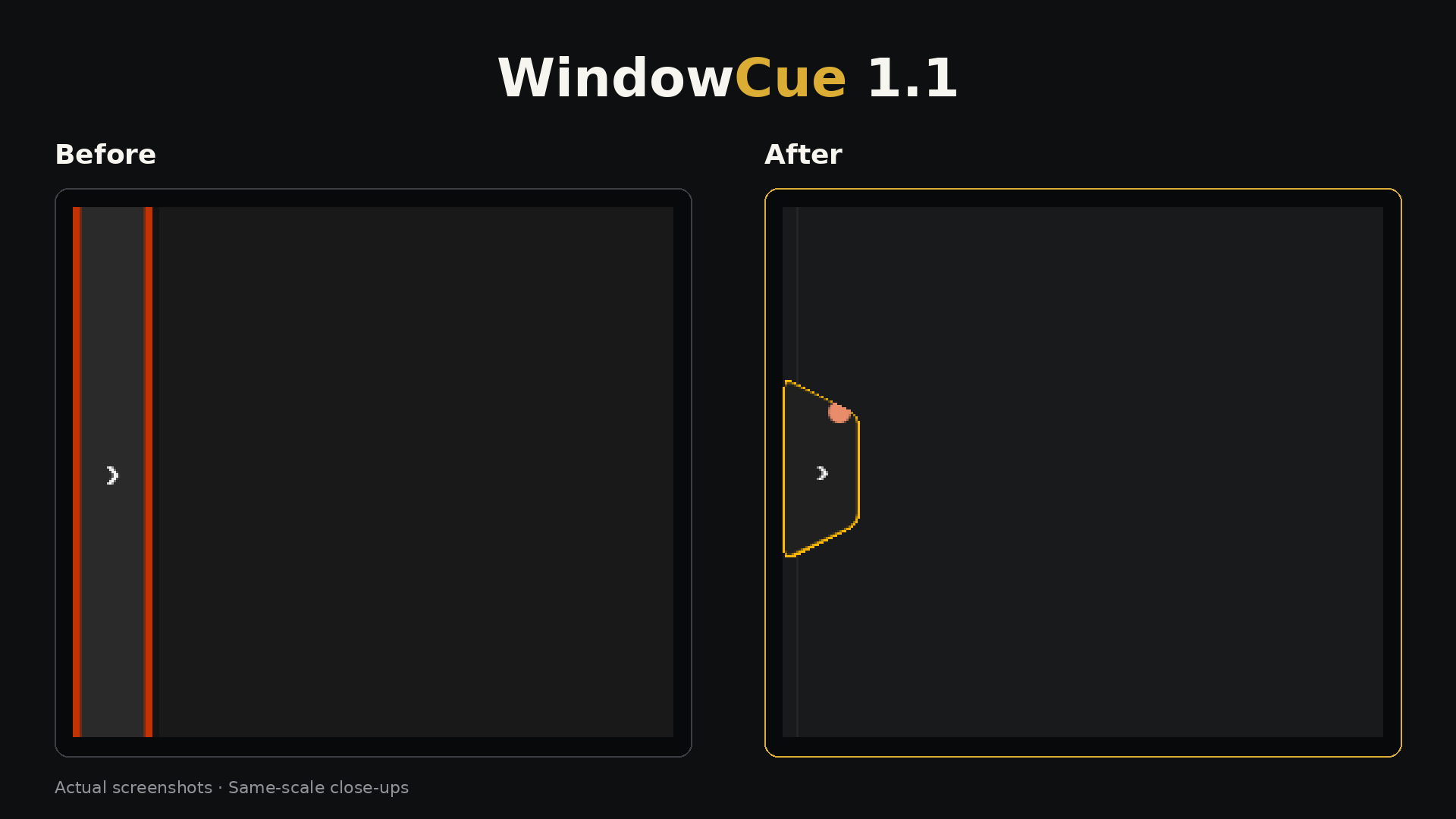
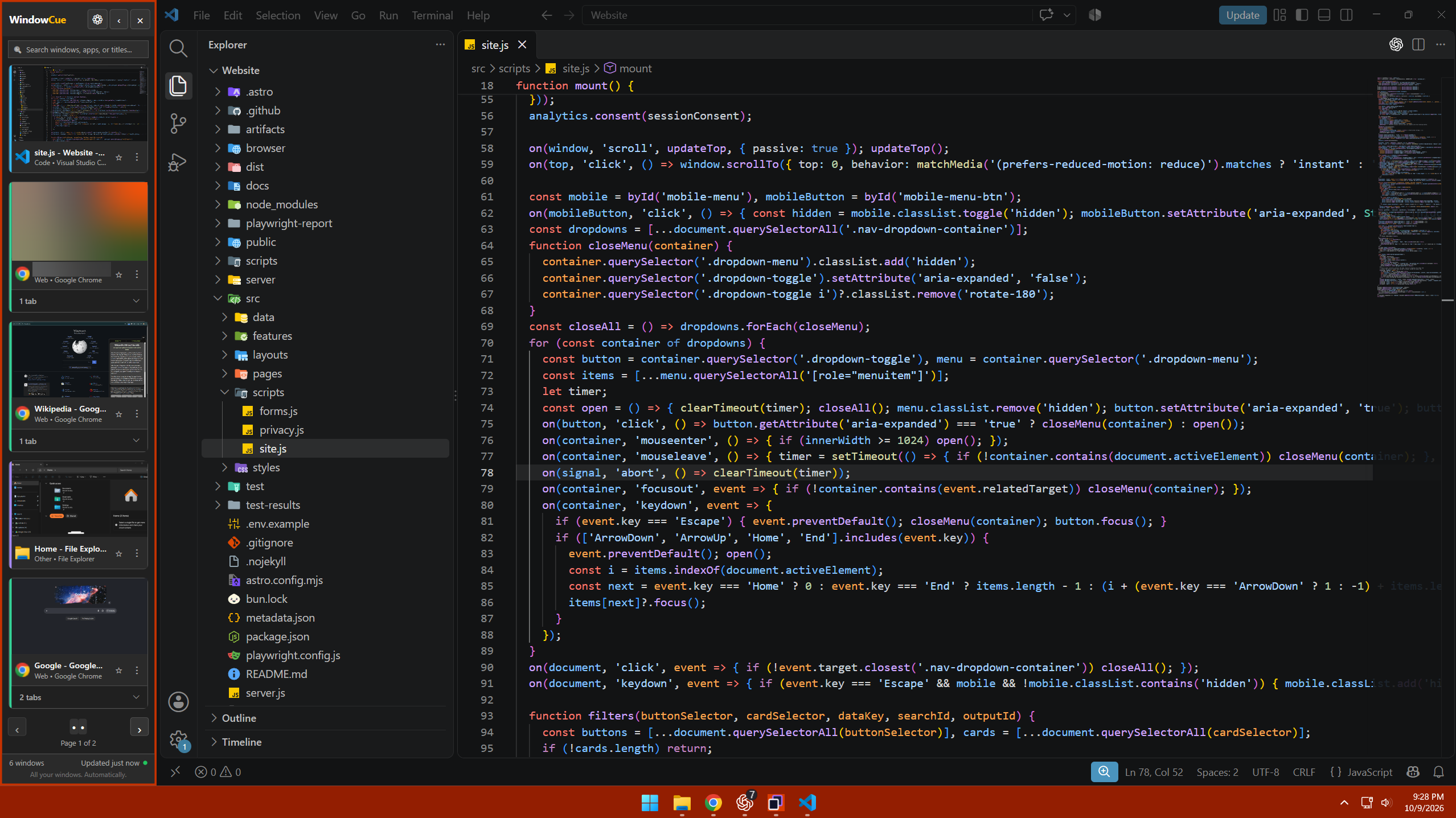
Screenshot note: the desktop screenshots in this guide show the earlier WindowCue 1.0.9 release. Some controls have changed in 1.1; see the linked release post for the compact arrow tab.
See your windows through visual tiles
WindowCue represents open windows with tiles containing their titles, application icons and available previews. Those details give you several ways to recognize what you're looking for: the document name, the app it belongs to, or the appearance of the window itself.
For example, a writer working with a draft and a reference document can look for the title or preview that matches the next task.
Preview availability depends on Windows and the application. Some minimized or protected windows won't provide a live preview, so titles and icons remain useful parts of the overview.
Search by title or application
The search field helps narrow the overview when you have more windows than you want to scan. Search using an application's name or words from a window title, then select the matching tile to return to that window.
If you're gathering research, try a word from the document you're looking for. If you know which app you need, start there. This is a useful place to begin before changing any settings or organizing your tiles.
Switch with a tile
Once you've recognized the right window, choose its tile to switch to it. The preview and search features lead into that same simple action.
You might keep WindowCue open while moving between a spreadsheet and a written report, choosing the relevant tile whenever you need the other window. Your existing applications remain the places where you do the work.
Keep useful windows pinned
Pins give you a way to mark windows you want to keep easy to find. A reference document, a project brief or the browser window you're using throughout a task are good candidates.
Manual pinning works independently of Smart Pin. You can decide which windows matter and organize them yourself, with the optional AI feature left off.
Group and reorder your tiles
Groups let related windows sit together in your overview. You could keep a draft and its research windows in one group, then organize the windows for a separate task together.
You can also change tile order to suit the way you're working. Use group names and custom labels that will make sense when you return to the sidebar later. A name like “Article research” gives a group a clear purpose.
These controls organize the sidebar's overview. Keep that distinction in mind when planning how you want your actual application windows arranged on the desktop.
See browser details where available
Browser tiles can include additional tab information where it is accessible. For example, Chrome tab counts can give you another clue when several browser windows look similar.
That extra detail can help you recognize which browser window holds the tabs you need. Availability depends on the browser and the information it exposes. WindowCue handles accessible tab titles and selection state locally; it does not read the contents of those pages.
Fit the sidebar around your workspace
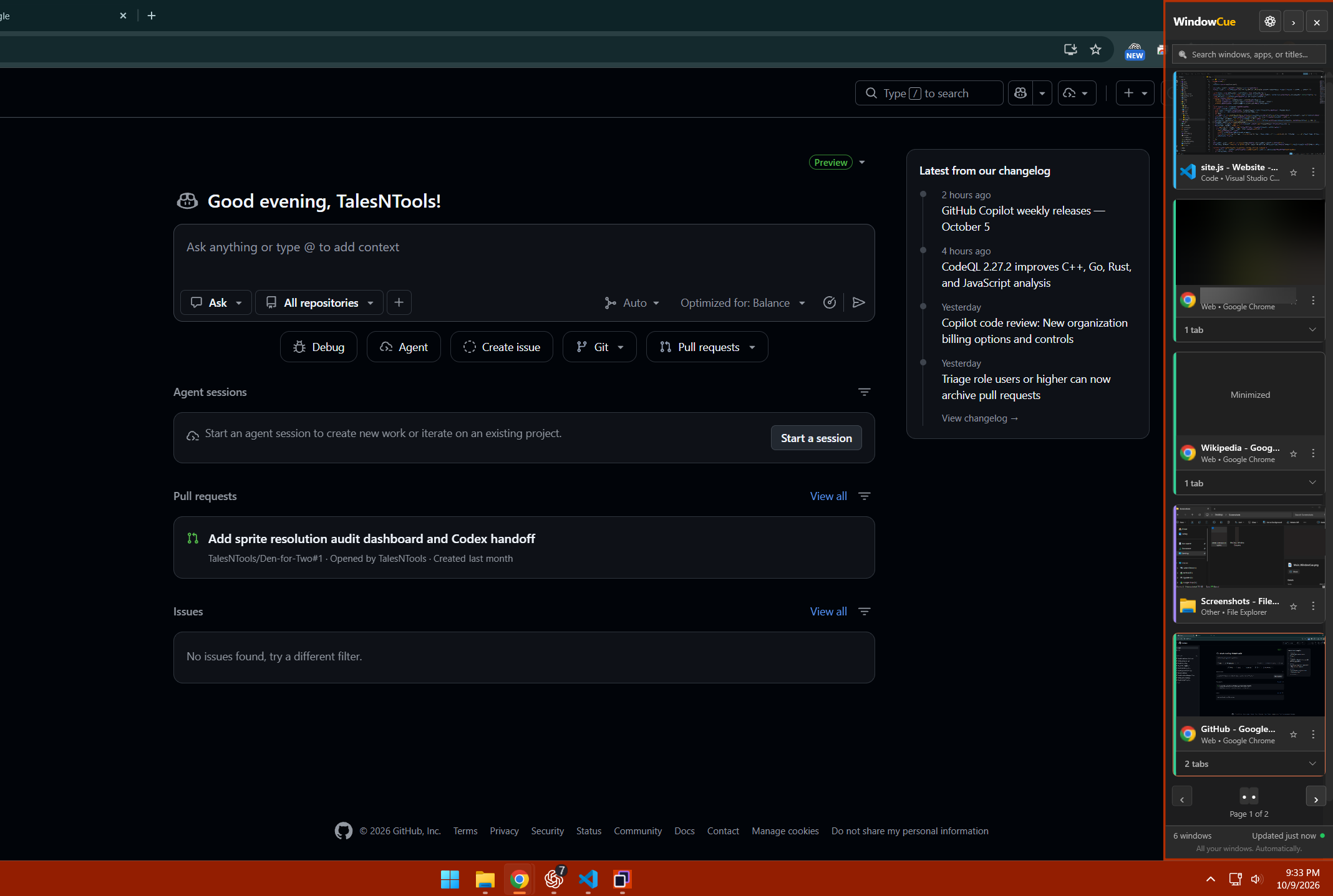
You can place WindowCue on the left or right side of the desktop and adjust its width and appearance. Try the side that feels easiest to glance at while you're using your main application.
There are also two space options. Overlay places the sidebar over the desktop edge. Reserved-space mode sets aside room for the sidebar, which can be useful when you want the overview to have a consistent place beside your work.
The right choice depends on how much room you want to give the overview and how often you use it.
View the right-side screenshot full size
Earlier release example · WindowCue 1.0.9. The sidebar can sit on either side of the desktop.
Collapse to the compact arrow tab
When you want the sidebar tucked away, collapse it to the small arrow tab at the screen edge. Use the tab to bring the full overview back.
WindowCue 1.1 introduced the compact tab and stopped reserving desktop space while the sidebar is collapsed. You can read more about that change in the WindowCue 1.1 release post.
Sidebar paging, keyboard focus and status labels also help with navigating the interface. The current Store release includes revisions to these controls, group controls and minimize-to-tray behavior.
Choose whether to use Smart Pin
Smart Pin is an optional local-AI feature that suggests related windows to pin. It is off for new settings, and WindowCue asks for confirmation when you enable it. Existing saved settings or a recovery copy can retain a previous choice.
A suggestion does not change your pins until you accept the action. You can keep using previews, search, switching and manual organization with Smart Pin off.
Smart Pin processes information locally and has no cloud inference fallback. Setup may use the internet for model information and downloads, and requirements and performance depend on the model and your PC. The supporting Microsoft Foundry Local SDK may send diagnostic and usage data to Microsoft. The WindowCue app section of our privacy policy explains those details.
Keep organization on your PC
WindowCue stores settings, pins, groups, tile order and observed application history locally, with recovery copies used for saved data. It does not record typing in other applications.
The app history is based on applications WindowCue observes, including foreground time and switching counters. It isn't a complete record of everything you've done on Windows. A clear-history option lets you manage that record. New observations can begin a new history afterward; see the privacy policy for details about saved data and recovery copies.
Choose a language and open the Quick Guide
Settings offers English and Spanish. The compact four-card Quick Guide walks through search, window previews, sidebar arrangement and collapse, making it a useful introduction when you're getting started.
Settings also includes a Microsoft Store link. For Store updates, open Microsoft Store and check for available app updates.
Try WindowCue with your own windows
Start with previews, search and switching. Add pins and groups as you discover which windows you return to most, then adjust the sidebar's placement and space mode around your work.
WindowCue's Microsoft Store listing specifies Windows 11 version 26100.0 or higher; the TalesNTools website identifies the app as x64. Check the official Microsoft Store listing for compatibility with your PC, current regional pricing and trial terms before installing.
If you need help, email support@talesntools.com with your WindowCue version and a description of the problem. Review screenshots and logs for private information before sharing them.